> ## Documentation Index
> Fetch the complete documentation index at: https://docs.go.gbgplc.com/llms.txt
> Use this file to discover all available pages before exploring further.
# Export customer session
> Export customer verification session data as a PDF from the GBG GO Investigation portal for compliance reporting and record-keeping.
export const VersionWarningBanner = () => {
const [latestUrl, setLatestUrl] = useState(null);
useEffect(() => {
if (typeof window === "undefined") return;
const {pathname, hash, search} = window.location;
if (!pathname.includes("/go-v1/")) return;
setLatestUrl(`${pathname.replace("/go-v1/", "/go-v2/")}${search}${hash}`);
}, []);
if (!latestUrl) return null;
return ;
};
The GBG GO Investigation portal allows you to export detailed customer session information as a PDF. This is great for record-keeping, compliance reporting, or sharing with stakeholders outside the GBG GO platform.
The exported PDF includes comprehensive session data from all tabs, including:
* Processing modules
* User data
* Documents
* Biometrics
* Checks
* Audit logs
You can also track PDF exports in the Audit Log tab, where each download is recorded with a timestamp and user details.
## Export a session to PDF
To export a customer session:
1. Log in to your GBG GO account.
2. Click **Investigation**. The investigation portal opens.
3. Click the **Session ID** of the session that you want to export. The session details page opens.
4. Click **Export** in the top-right corner of the page. The **Export session** dialog appears.
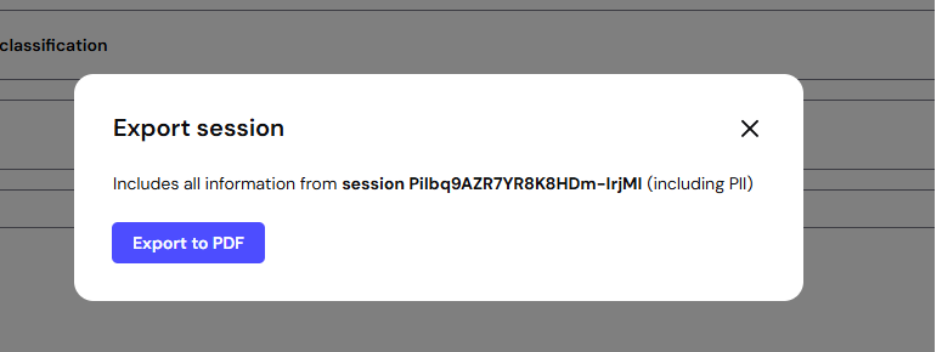 5. Click **Export to PDF**. The PDF file downloads to your device automatically.